This tutorial will show you how to stop sending “Sent from my iPhone” signature when you send an email on your iPhone.
Turn Off “Sent from my iPhone” Email Signature
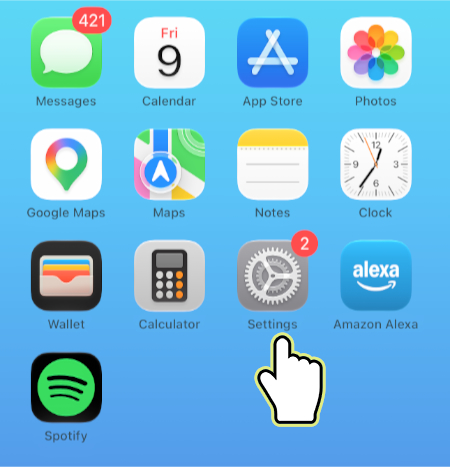
1. Open Settings.
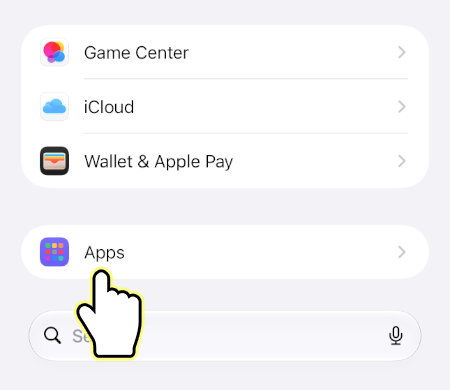
2. Scroll down and open Apps.
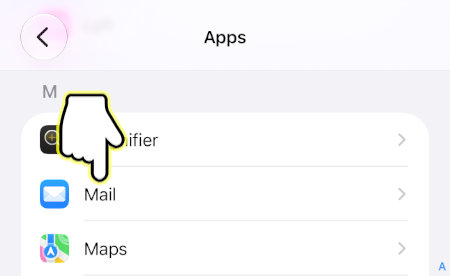
3. Open Mail.
4. Scroll down and open Signature.
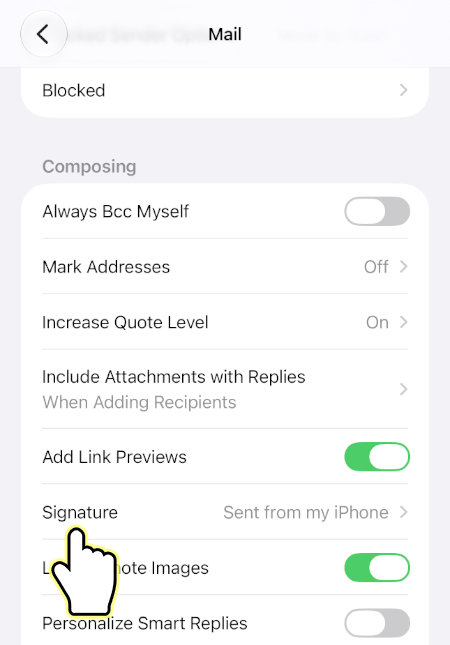
5. Delete “Sent from my iPhone“.
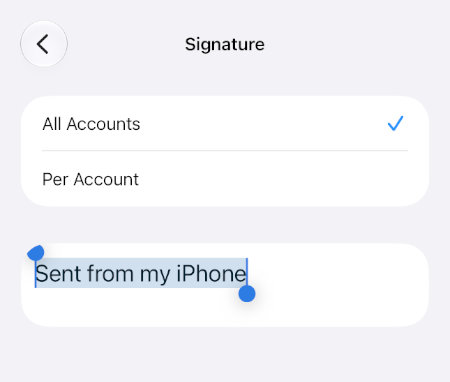
That’s it! You will no longer include “Sent from my iPhone” at the end of your emails.