This guide will show you how to add custom wraps and change the Tesla’s 3D vehicle visualization on your Tesla dashboard. This will currently work on your Cybertruck, Model 3 (all models), and Model Y (all models). Your Tesla will need to be on version 2025.44.25.5 or higher to use this feature. You can add custom wraps designs and upload it to Tesla Paint Shop.
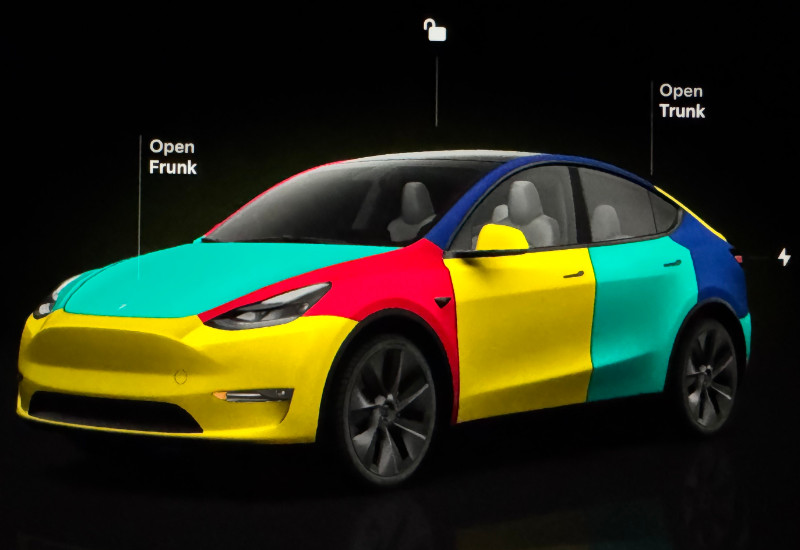
Download our exclusive design here, modeled after the Volkswagen Golf Harlequin:
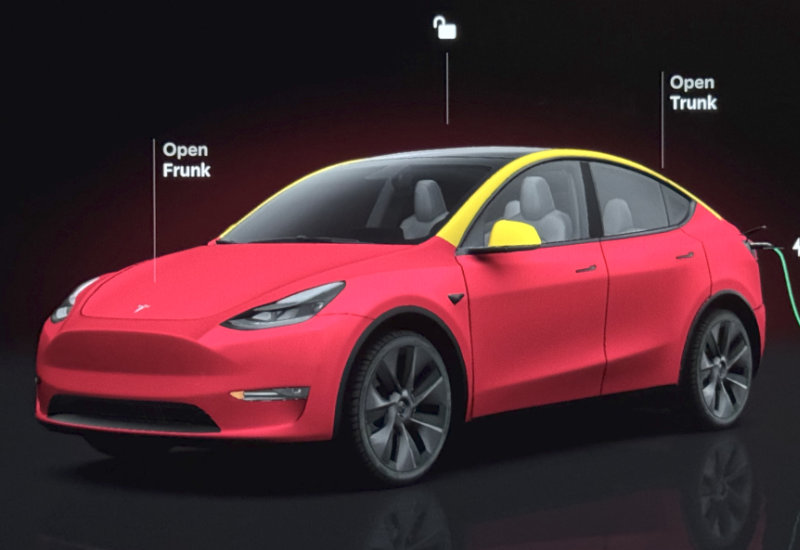
Exclusive Little Tikes Custom Wrap
Add Custom Wrap Images to Tesla Paint Shop
1. Safely remove the USB drive from your Tesla’s glovebox. You may need to press the vehicle icon on the bottom-left corner and long-press the dashcam icon.
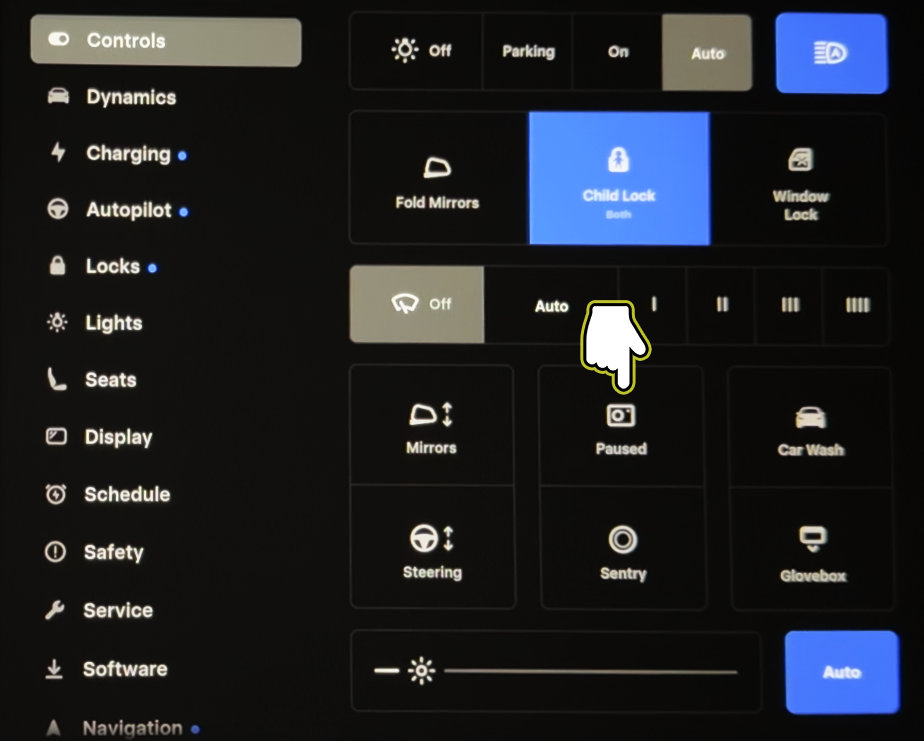
2. Connect USB drive to computer and open drive.
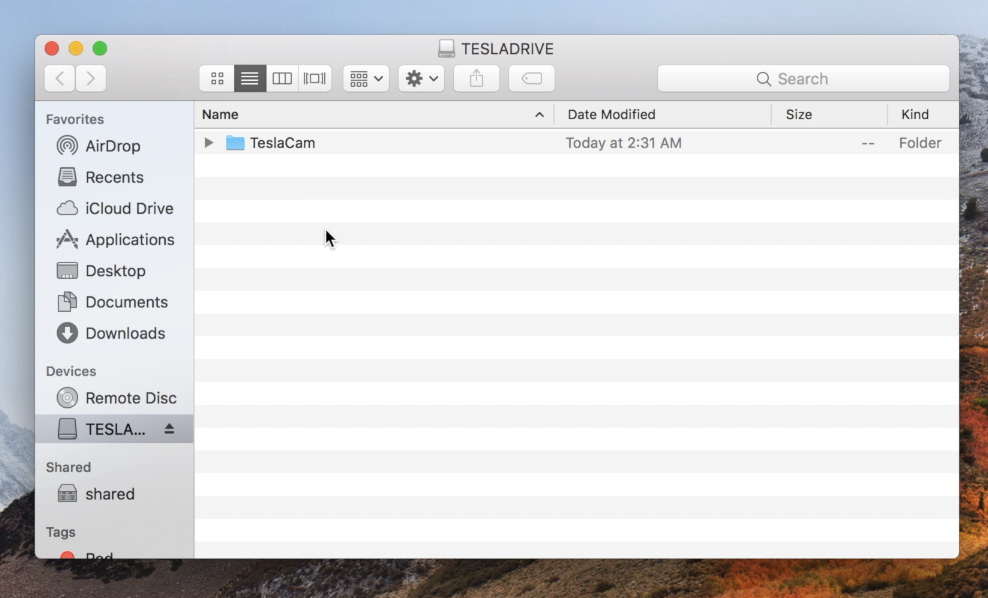
3. Create a new folder called Wraps at the root level of the drive.
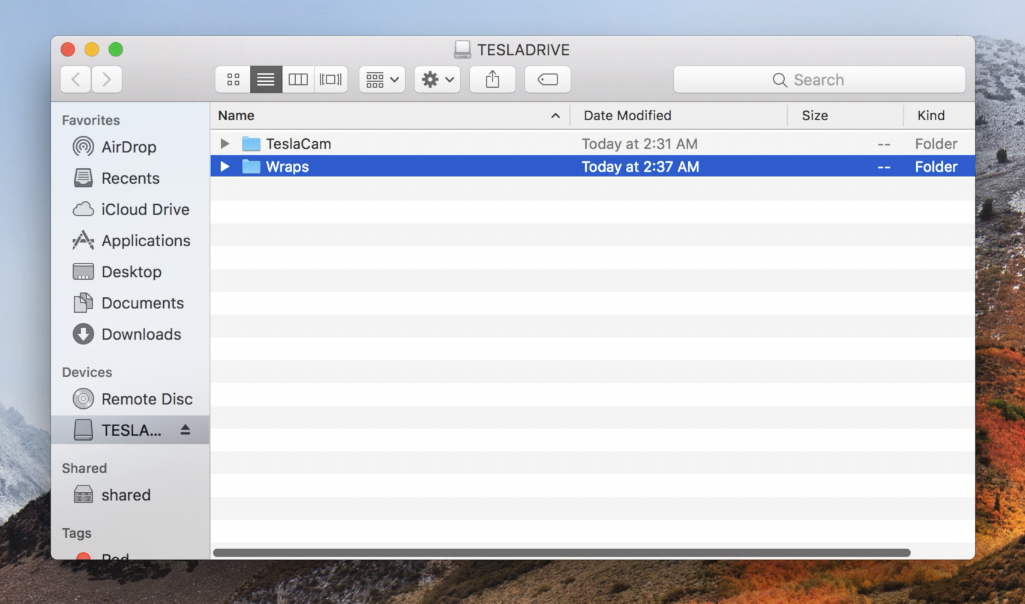
4. Place your custom wrap images inside the folder.
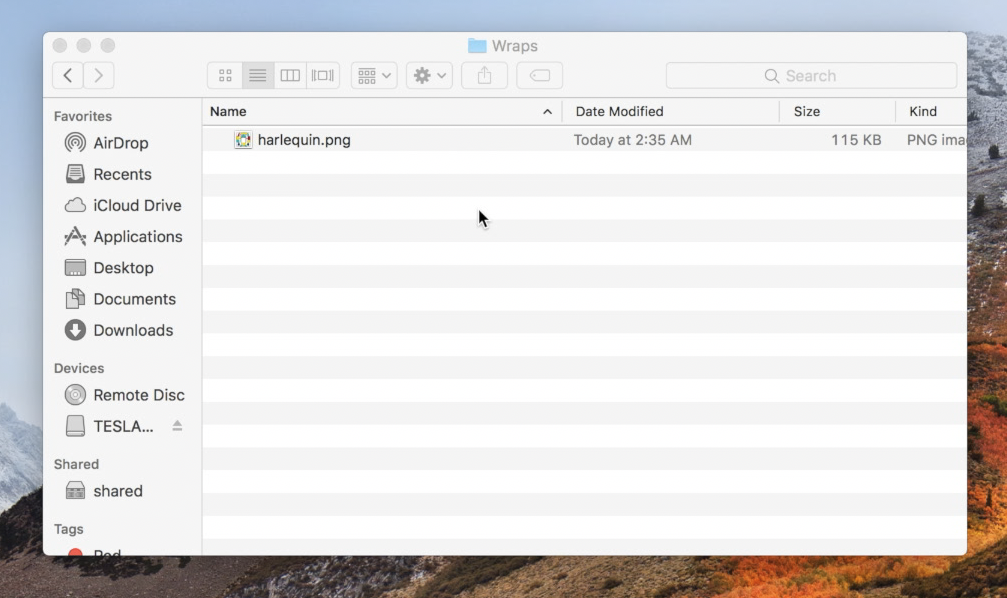
Image Requirements:
Resolution: 512×512 to 1024×1024 pixels (use template size for best results)
File Size: Images must be no larger than 1 MB.
File Name: Use alphanumeric characters, underscores, dashes, and spaces only (max 30 characters).
File Format: Images must be in PNG format.
File Count: Up to 10 images can be used at a time.
5. Safely remove drive from computer and connect it back to your Tesla.
6. Open Toybox > Paint Shop > Customize > Wraps
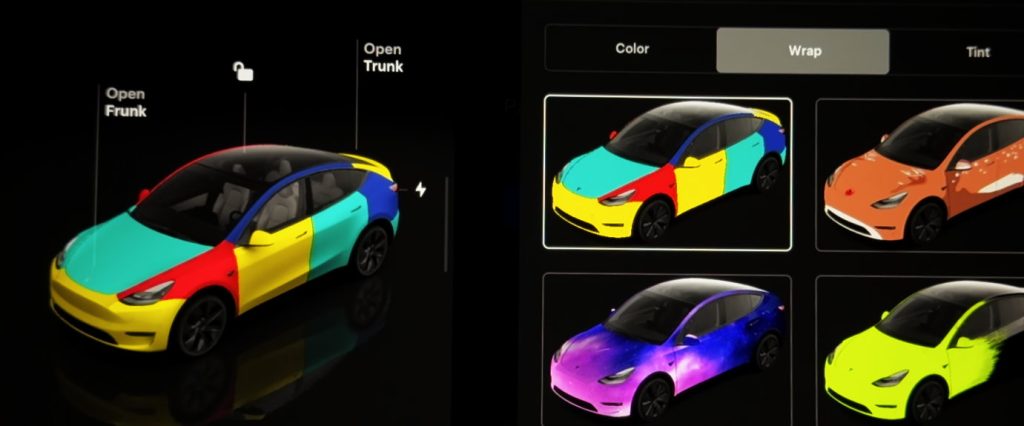
You should now see your custom wrap in the Paint Shop. Select your wrap and it will update your car’s 3d model on the dashboard. For more information and Tesla vehicles template, see Tesla Motor’s GitHub page here.